Overview
This guide provides detailed step-by-step instructions for using the Addresser self-service bulk address cleansing feature. The service validates and standardises Australian address data against the GNAF (Geocoded National Address File) and Australia Post AMAS guidelines.
The pre-requisite is a subscription to the Business plan from the Addresser pricing page. Flexible pricing options are available starting from 500 lookups per month through to 150,000 lookups per month.
Please note the trial plan (Business 1000 lookups / 30 days) cannot be used for production data cleansing.
Sign Up for a Business Plan
Before using the bulk address validation service, you must be registered and subscribed to a Business plan. If you already have an account, skip to Step 2.
- Visit app.addresser.com.au/pricing and select a Business plan that matches your monthly volume requirements.
- Complete the registration process. You will be prompted to create a username and password during sign-up.
- Keep your credentials safe — you will use them each time you log in to the Addresser dashboard.
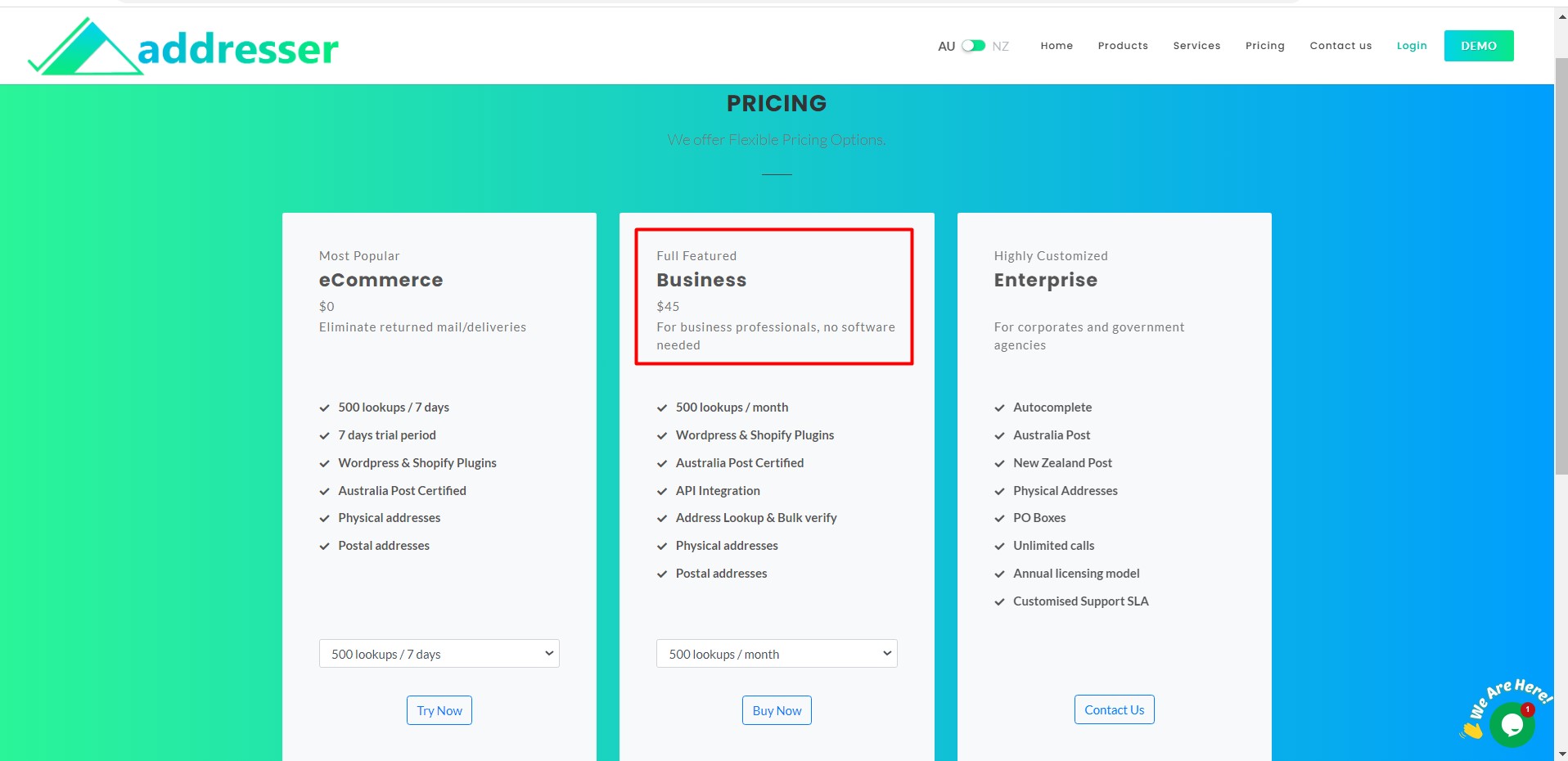
Addresser Business Plan pricing options — choose the tier that suits your monthly volume.
Login to the Dashboard
Once registered, use your credentials to log in to the Addresser dashboard where all bulk validation functions are managed.
- Go to app.addresser.com.au/signin.
- Enter your Username and Password.
- Click Login to access the dashboard.
- If you have forgotten your password, click Reset Password? on the login page.
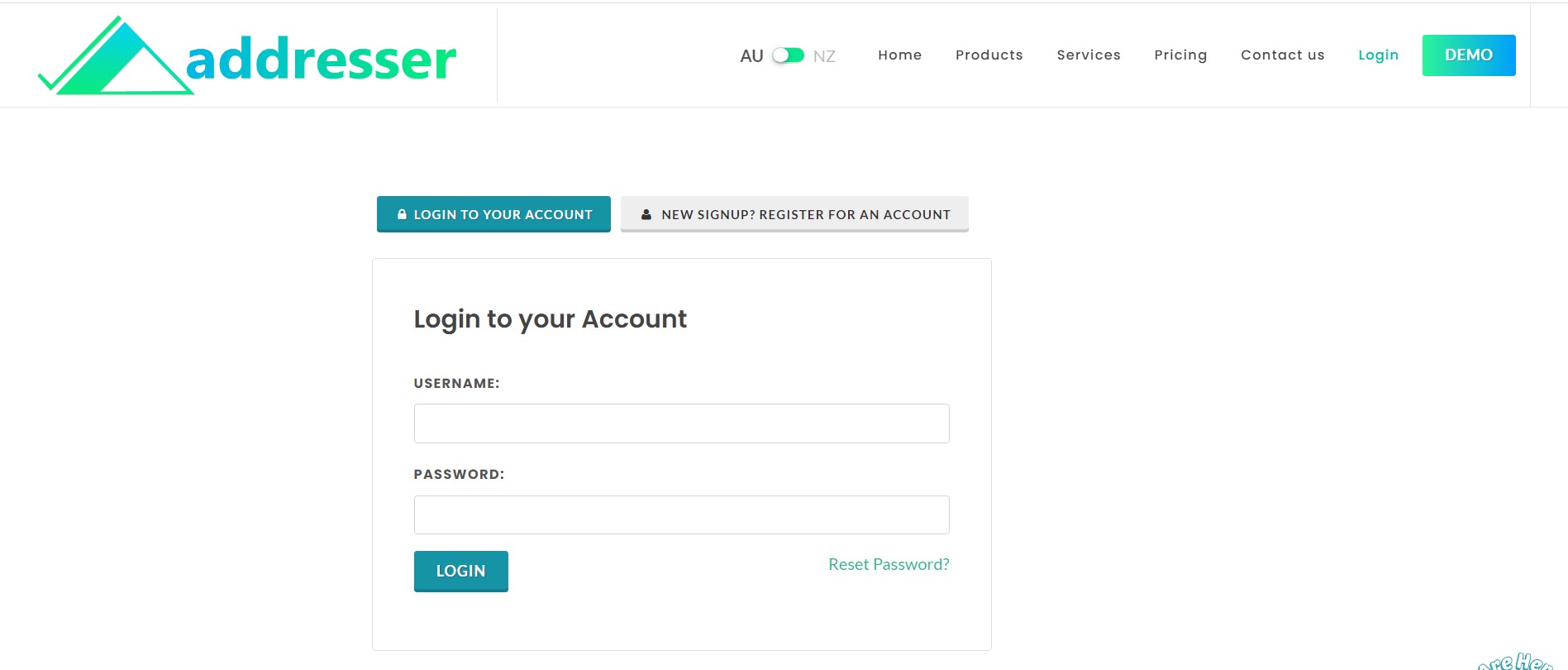
The Addresser secure sign-in page at app.addresser.com.au/signin.
Navigate to Bulk Validation
After logging in you will land on the Dashboard showing your usage reports. Navigate to the Bulk Validation feature from the left-hand sidebar.
- Locate the left-hand navigation bar.
- Click "Bulk Validation".
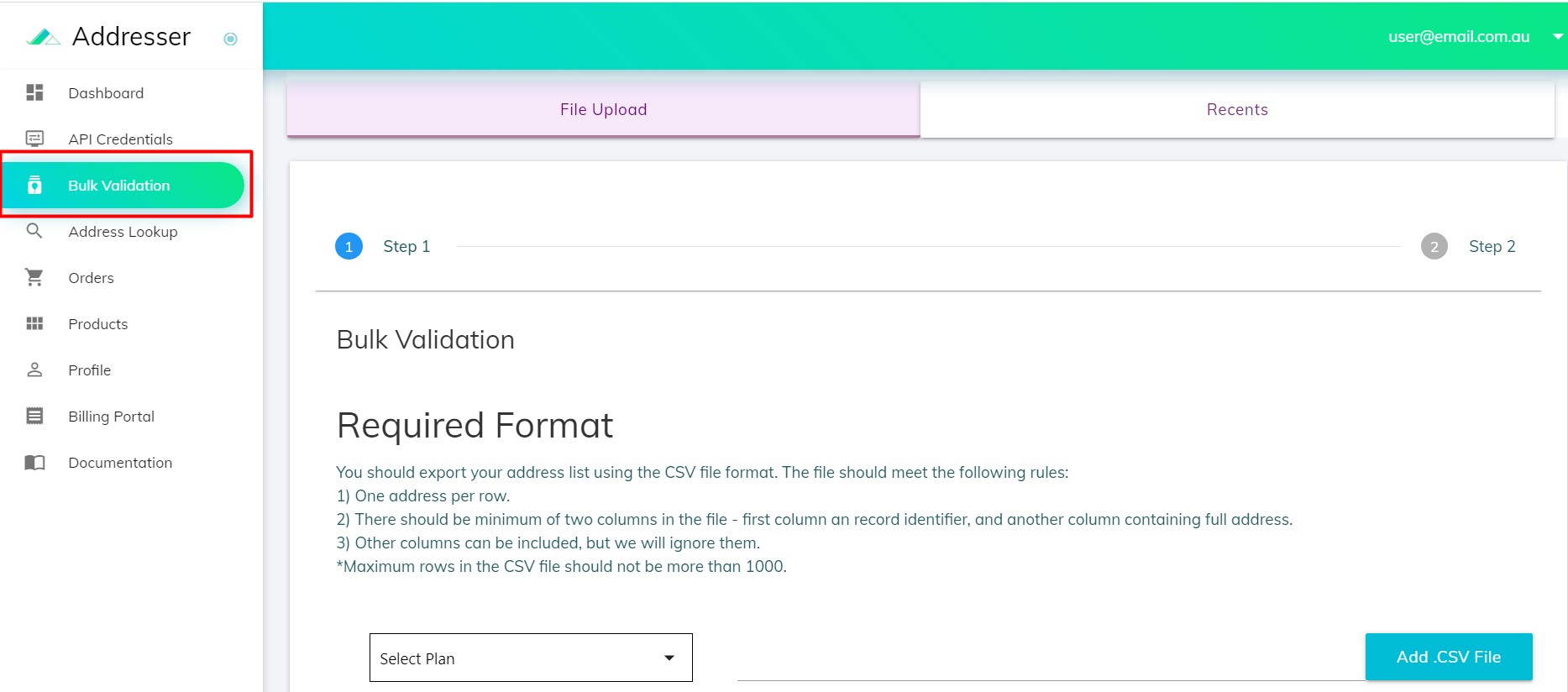
Click "Bulk Validation" in the left-hand navigation sidebar.
The Bulk Validation page will load, displaying two tabs at the top: File Upload and Recents.
Prepare Your CSV File
The bulk address validation service requires an address file in CSV (Comma Separated Values) format. Preparing your file correctly before uploading will avoid errors.
- Each record must have the full address stored in a single column and a unique identifier in another column.
- The file must use UTF-8 encoding.
- Save the file in .csv format only — Addresser does not accept Excel (.xlsx) files directly.
- A CSV can be exported from Microsoft Excel using File > Save As > CSV (Comma delimited).
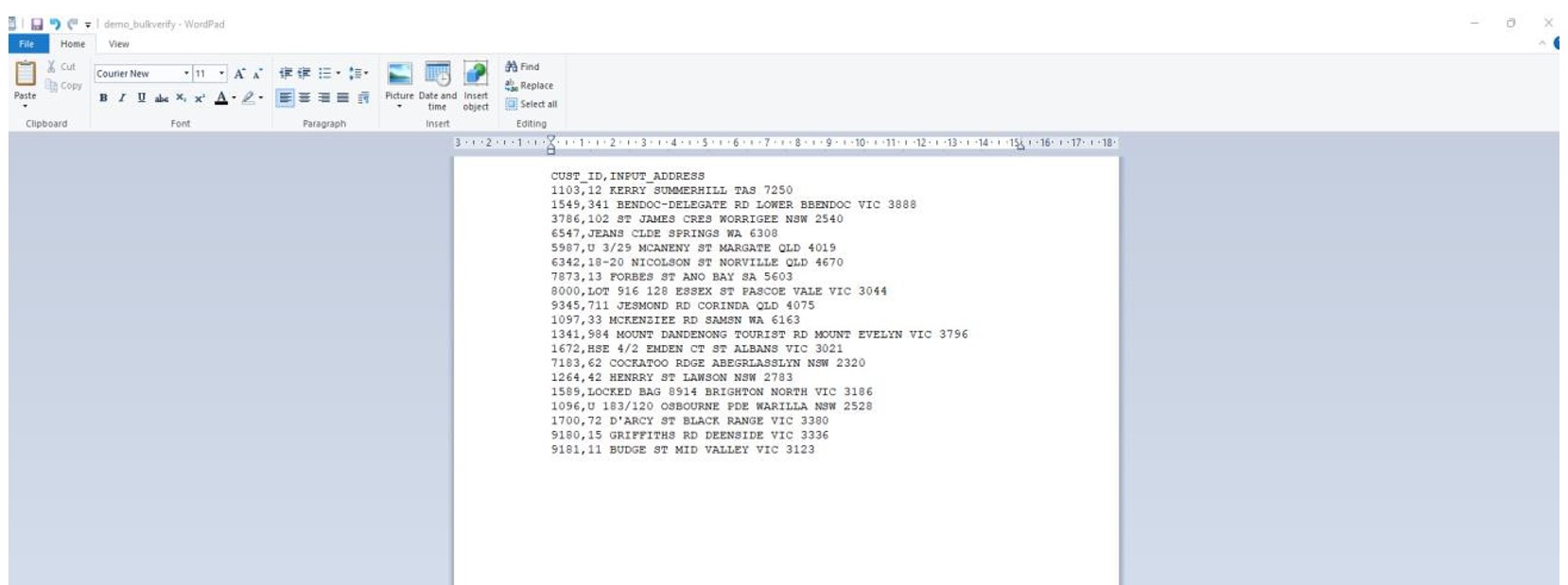
Example CSV structure: a unique identifier in the first column and the full address in the second column.
Upload Your CSV File
From the File Upload tab on the Bulk Validation page, configure your upload settings and select your file.
- Click the "Select Plan" dropdown and choose the active Business plan you are subscribed to.
- Click the "Add CSV" button to browse and select your CSV file.
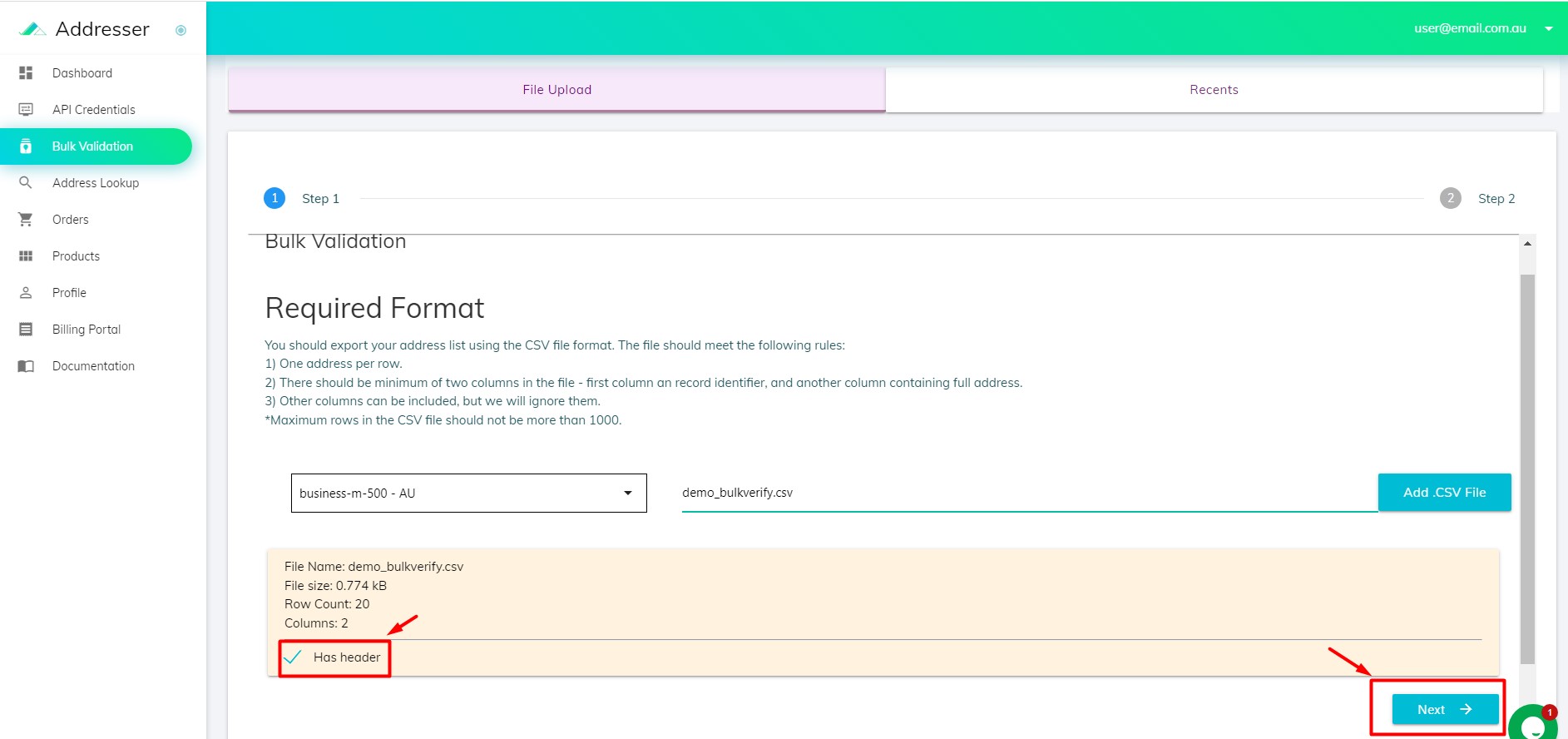
- Once selected, the system will display the file name, file size, row count, and number of columns. Review these to confirm the file was read correctly.
- If your CSV contains a header row, tick the "Has header" checkbox.
- Click the "Next" button to proceed to the column selection step.
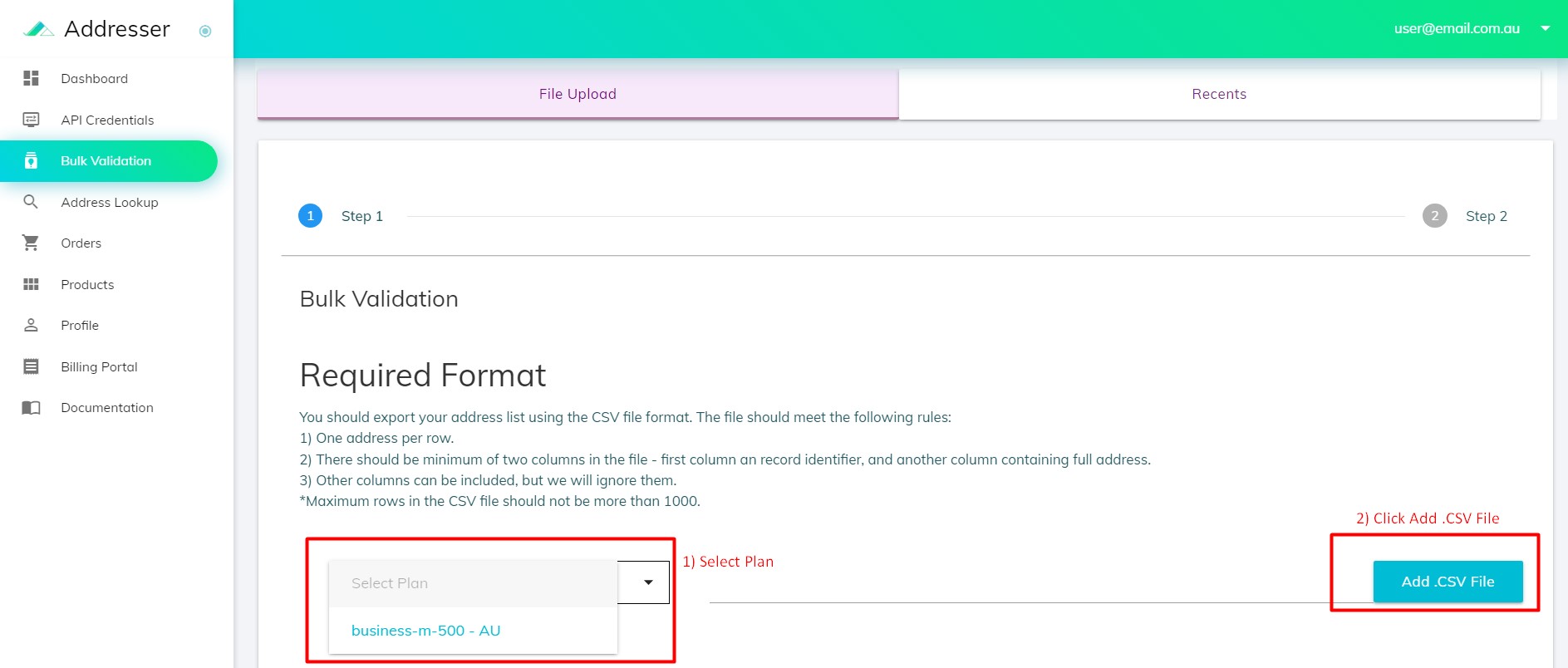
Select your plan, add the CSV file, confirm the header option, then click Next.
Select the Address Column
After clicking Next, the system advances to Step 2 of the upload wizard. A preview of the first data row from your CSV is shown, with each column listed individually.
- Review the sample row to identify which column contains your address data.
- Select the column header that corresponds to your address field (e.g. INPUT_ADDRESS). A tick mark will confirm the selection.
- Click "Upload" to submit the file for processing.
Step 2 of the upload wizard: select the column containing your address data, then click Upload.
Monitor Batch Status
Once uploaded, the system queues your file for processing. You can track its progress from the Recents tab.
- After clicking Upload, the system automatically switches to the Recents tab.
- Your file will appear in the list. At this stage its status will be "Submitted".
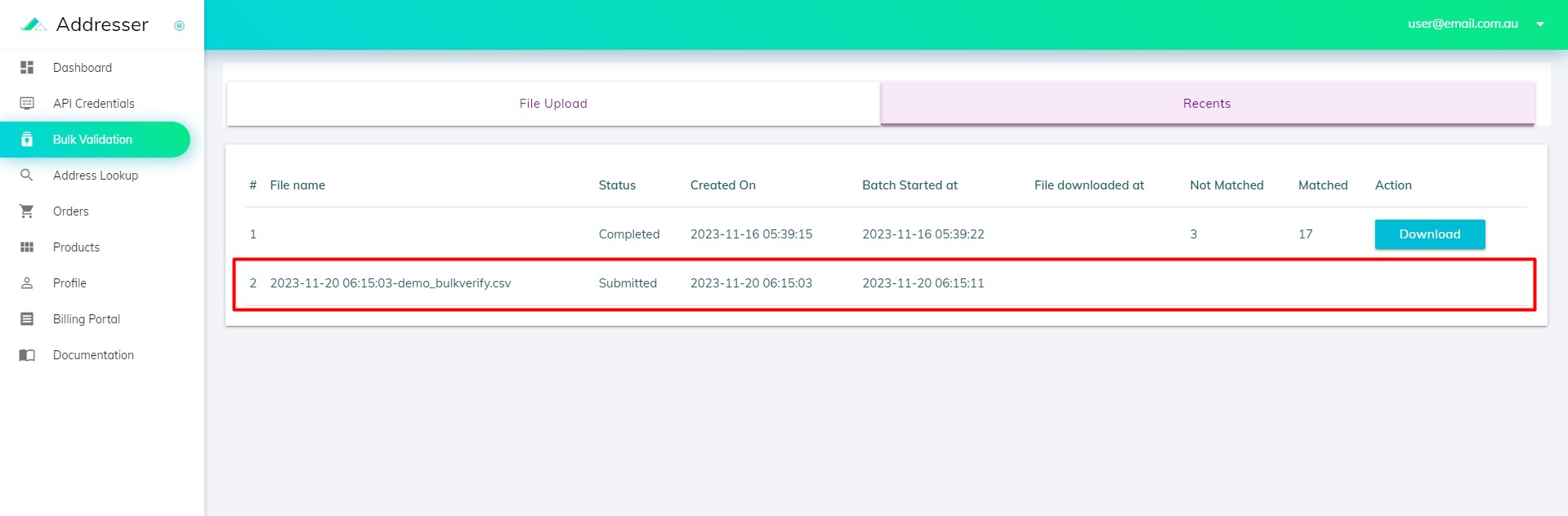
The Recents tab shows your submitted file at the top of the list. The file names have been redacted for privacy.
Shortly after upload you will receive a notification email from Addresser confirming the file was received and is being processed.
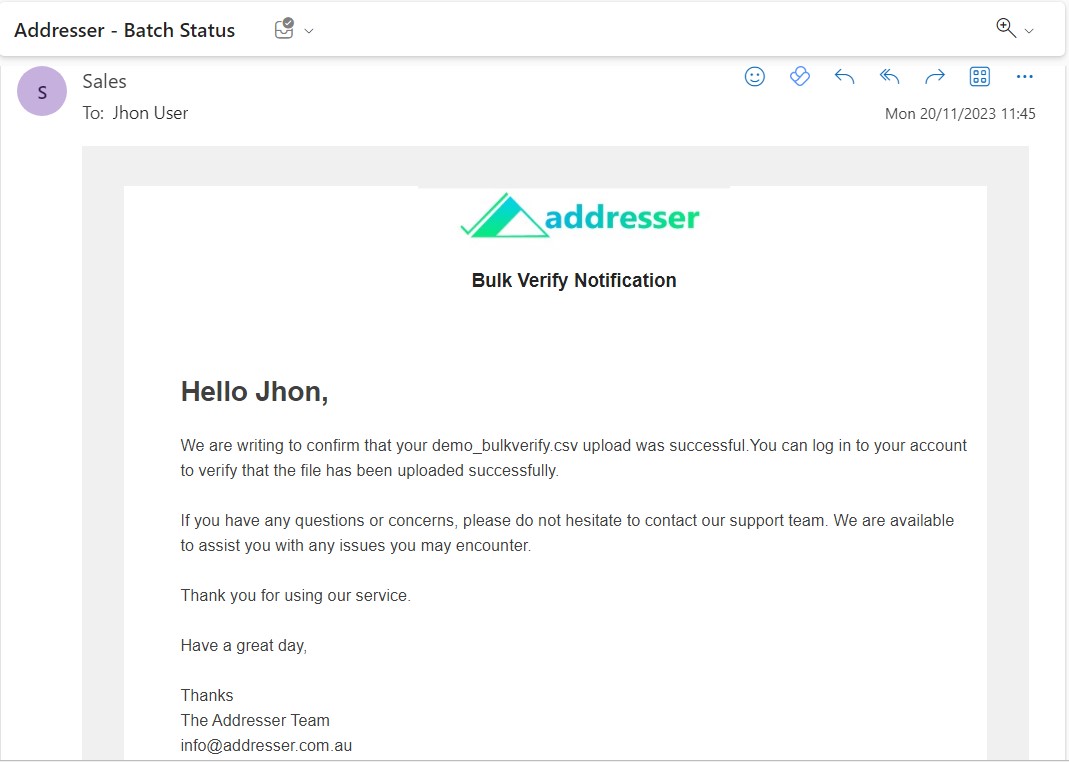
First email notification: confirms your file was uploaded and queued for processing.
When processing is complete, you will receive a second email notification advising the results file is ready to download.
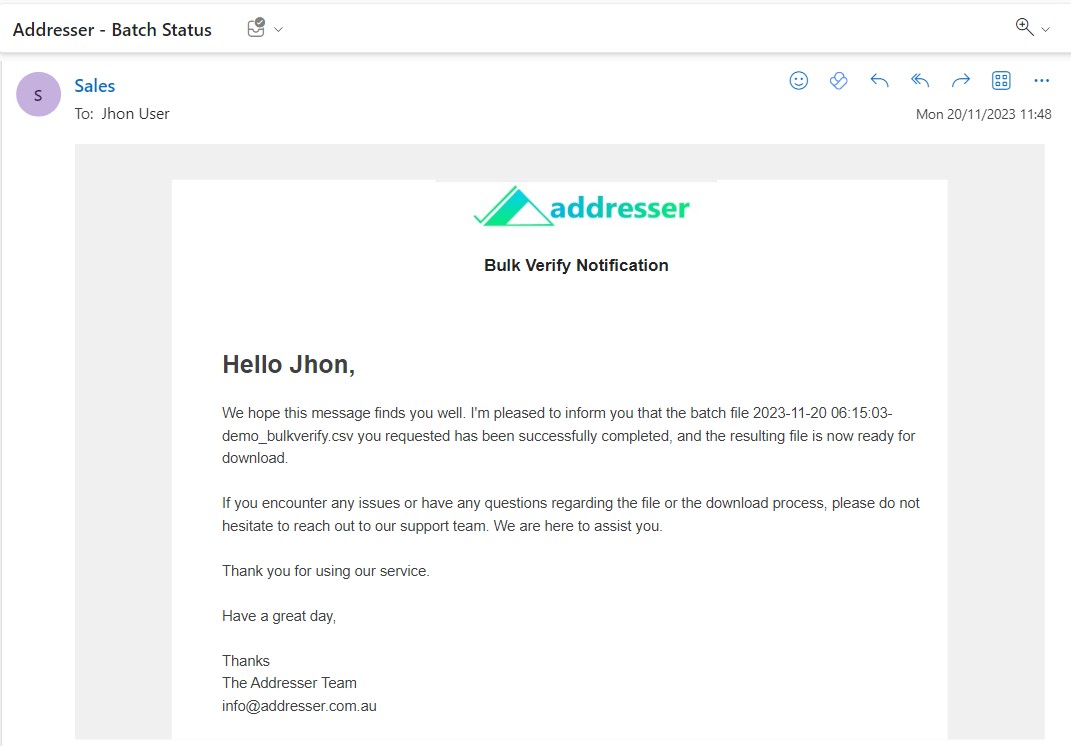
Second email notification: confirms bulk cleansing is complete and the results file is ready.
Download Your Results File
Once you receive the completion email, return to the Recents tab to download your cleansed address file.
- Navigate to Bulk Validation in the left sidebar.
- Click the Recents tab at the top of the page.
- Locate your file — its status will now show as "Completed".
- Click the "Download" button in the Action column next to your file.
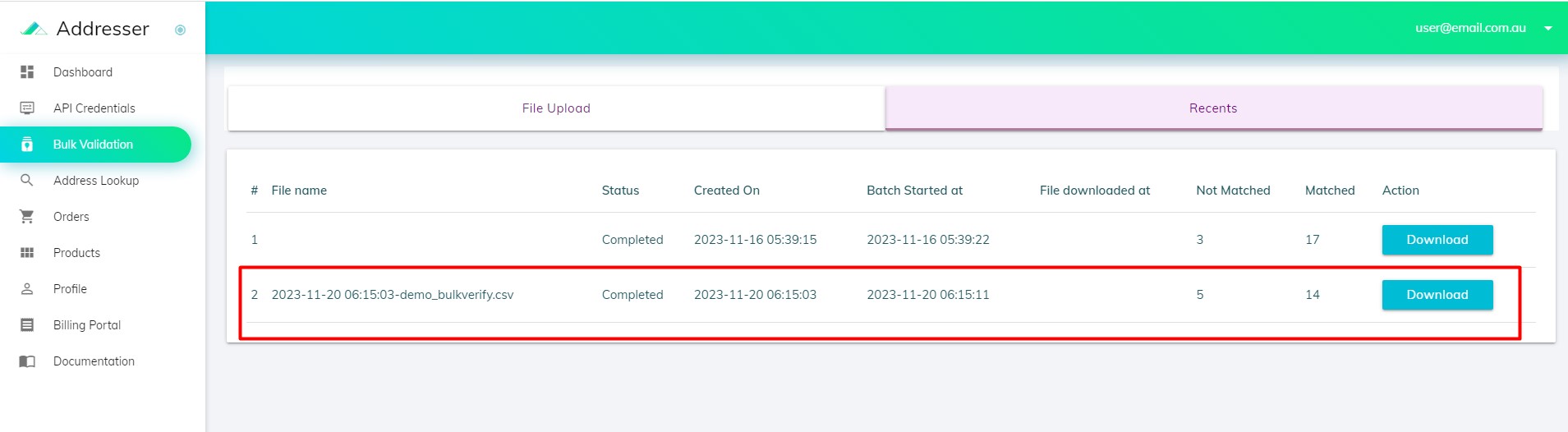
The Recents tab showing the processed file with "Completed" status and the Download button available.
Understanding the Cleansed File Format
The downloaded CSV file contains your original columns plus a comprehensive set of standardised address fields appended by the system. Open it in Microsoft Excel or any CSV viewer to review your results.
Each output column is described in the reference table below.
| Column Name | Description |
|---|---|
| INPUT COLUMNS (from your uploaded file — data unchanged) | |
| CUST_ID | Your original record identifier, carried through unchanged. |
| INPUT_ADDRESS | The original address string from your uploaded file, carried through unchanged. |
| PARSED & STANDARDISED ADDRESS COMPONENTS | |
| DELIVERY_POINT_ID | The DPID (Delivery Point Identifier) of the validated and matched address. A value of "0" means the address cannot be matched per Australia Post AMAS Guidelines. |
| FLAT_UNIT_TYPE | Standardised flat or unit type (e.g. UNIT, APT, SUITE). |
| FLAT_UNIT_NBR | Standardised flat or unit number. |
| FLOOR_LEVEL_TYPE | Standardised floor level type (e.g. LEVEL, FLOOR). |
| FLOOR_LEVEL_NBR | Standardised floor level number. |
| LOT_NBR | LOT number of the address, if available from GNAF data. |
| POSTAL_DELIVERY_TYPE | Standardised postal delivery type (e.g. PO BOX, LOCKED BAG, GPO BOX). |
| POSTAL_DELIVERY_NBR | Postal delivery number (e.g. the number of the PO Box). |
| POSTAL_DELIVERY_NBR_PFX | Standardised postal delivery number prefix. |
| POSTAL_DELIVERY_NBR_SFX | Standardised postal delivery number suffix. |
| HOUSE_NBR_1 | Address house or property number. |
| HOUSE_NBR_SFX_1 | Address house or property number suffix (e.g. "A" in 205A). |
| HOUSE_NBR_2 | Second house number for ranged addresses (e.g. "12" in 10–12 George St Sydney NSW 2000). |
| HOUSE_NBR_SFX_2 | Second house number suffix for ranged addresses. |
| STREET_NAME | Standardised street name. |
| STREET_TYPE | Standardised street type (e.g. ST, RD, AVE, BLVD). |
| STREET_SFX | Standardised street suffix (e.g. NORTH, EAST). |
| LOCALITY_NAME | Standardised suburb or locality name. |
| POSTCODE | Standardised postcode. |
| STATE | Standardised state name (e.g. NSW, VIC, QLD). |
| LONGITUDE | Address longitude coordinate, if available from GNAF data. |
| LATITUDE | Address latitude coordinate, if available from GNAF data. |
| FORMATTED OUTPUT FIELDS | |
| FULL_ADDRESS | Standardised single-line full address output. |
| BARCODE_4STATE_NUMBER | Australia Post standard DPID represented in 4-state barcode number format, for mail production use. |
| ADDRESSLINE_1 | First line of the formatted multi-line address (typically the unit/flat and street number and street name). |
| ADDRESSLINE_2 | Second line of the formatted multi-line address (typically the suburb/locality). |
| ADDRESSLINE_3 | Third line of the formatted multi-line address (typically the state and postcode). |
| ADDRESSLINE_4 | Fourth line of the formatted multi-line address, populated where an additional line is required. |
| MATCH & QUALITY FIELDS | |
| CORRECTIONS_APPLIED | Description of any corrections applied to the supplied address during standardisation. |
| MATCH_TYPE | Indicates whether the match is to a Primary address point (street-level, no specific unit) or a Secondary address point (specific unit, lot, or street number suffix). Match scores and quality thresholds differ between the two types — see the reference tables below. |
| MATCH_SCORE | Numeric score reflecting the matching rule applied. Higher scores indicate closer matches. The score range and meaning differs depending on whether the match is Primary or Secondary — see the reference tables below. |
| MATCH_QUALITY | Confidence level derived from the match score and rule applied: High, Medium, or Low. See the reference tables below for the quality assigned to each matching rule. |
| PRESORT & PRINTSORT FIELDS | |
| PRESORT_PLAN_NUMBER | Australia Post presort plan number assigned to this address, used for bulk mail lodgement and discounted postage rates. |
| PRESORT_EXPIRY_DATE | Expiry date of the presort plan number. Records should be re-validated before this date to maintain presort eligibility. |
| PRESORT_INDICATOR | Flag indicating whether this address qualifies for Australia Post presort rates (Y = eligible, N = not eligible). |
| PRINTSORT_SUB_DIVISION_INDICATOR | Indicates the PrintSort sub-division classification for this address, used in sequencing mail for print and sort workflows. |
| PRINTSORT_EXPIRY_DATE | Expiry date of the PrintSort sub-division indicator. Addresses should be re-validated before this date for continued PrintSort accuracy. |
MATCH_TYPE, MATCH_SCORE & MATCH_QUALITY Reference
The MATCH_TYPE column indicates whether the address was matched to a Primary address point (a street-level address without a specific unit) or a Secondary address point (a specific unit, flat, lot, or sub-address). The match score and quality thresholds vary between these two types — Secondary matches generally achieve higher scores because more address components are available for comparison.
| Matching Rule Applied | MATCH_SCORE | MATCH_QUALITY |
|---|---|---|
| Exact Match — no corrections applied | 100 | High |
| Misspelt Street Name Rule | 93 | High |
| Misspelt Locality / Synonym Rule | 95 | High |
| Street Alternate Matching (SAM) Rules | 87 | High |
| Street Alternate Matching (SAM) — Misspelt Locality applied | 70 | Medium |
| Street Alternate Matching (SAM) — Locality Synonym applied | 70 | Medium |
| Bordering Locality Matching (BLM) | 83 | Medium |
| Bordering Locality Matching (BLM) — various sub-rules (TB Rule, PPM Rules, Misspelt Locality, Street Type Suffix) | 70 | Medium |
| Combination of Street Alternates & Bordering Localities | 78 | Medium |
| Combination of Street Alternates & Bordering Localities — Misspelt Locality applied | 70 | Medium |
| Combination of Misspelt Street Name and Locality Rule | 66 | Medium |
| All Address Matching Rule | 70 | Medium |
| All Address Matching Rule — Misspelt Locality/Synonym applied | 70 | Medium |
| All Address Matching Rule — TB Rule / Primary Point over Street Type Suffix | 70 | Medium |
| PPM Rule 1 applied | 75 | Medium |
| TB Rule — Locality Synonym over Postcode | 65 | Medium |
| TB Rule — Street Name versus Locality | 65 | Medium |
| Below DPID Matching Rule 1 | 30 | Low |
| Below DPID Matching Rule 2 | 30 | Low |
| Matching Rule Applied | MATCH_SCORE | MATCH_QUALITY |
|---|---|---|
| Exact Match — no corrections applied | 100 | High |
| Misspelt Street Name Rule | 95 | High |
| Misspelt Locality / Synonym Rule | 98 | High |
| Street Alternate Matching (SAM) Rules | 90 | High |
| Street Alternate Matching (SAM) — Misspelt Locality applied | 90 | High |
| Street Alternate Matching (SAM) — Locality Synonym applied | 90 | High |
| Bordering Locality Matching (BLM) | 85–90 | High |
| Bordering Locality Matching (BLM) — various sub-rules (TB Rule, PPM Rules, Misspelt Locality, Street Type Suffix, Exact Match) | 90 | High |
| Combination of Street Alternates & Bordering Localities | 80 | Medium |
| Combination of Street Alternates & Bordering Localities — Misspelt Locality applied | 90 | High |
| Combination of Misspelt Street Name and Locality Rule | 66 | Medium |
| All Address Matching Rule | 90 | High |
| All Address Matching Rule — Misspelt Locality/Synonym applied | 90 | High |
| All Address Matching Rule — TB Rule / Primary Point over Street Type Suffix | 90 | High |
| TB Rule — Locality Synonym over Postcode | 70 | Medium |
| TB Rule — Street Name versus Locality | 70 | Medium |
| Misspelt Street Name Rule — PPM Rule 1 applied | 90 | High |
Ready to start cleansing your address data?
Contact the Addresser team to begin your journey to data excellence today.
Contact Us